
/schedule (all)
Allows a user to look at the class schedule
aliases: class-time, classrooms-time, classrooms-schedule, class-schedule
Creator: Pandette Bell
Contributors: Michael King, Elder Flamel, Haley King
The Classrooms plugin was designed based on previous plugins created on Knockturn to allow users to attend classes. The Original concept for previous plugin was that a real person would teach classes. However, with the release of Classrooms, we now have classes that automatically run allowing for users from any timezone to participate in classes.
This is a list of all commands currently featured in the classrooms plugin that can be run by users.
/schedule (all)
Allows a user to look at the class schedule
aliases: class-time, classrooms-time, classrooms-schedule, class-schedule
/turnin [subject] [classnumber]
Allows a user to turn in a homework for a specific subject/classnumber
aliases: turnitin
/homework [subject] [classnumber]
Allows a user to look up the homework for a specific subject/class number
aliases: hw
/raisehand
Allows a user to raise their hand during a lesson
Class Participants Only
aliases: rh,raise-hand,raise-h,r-h,r-hand
/lowerhand
Allows a user to lower their hand during a lesson
Class Participants Only
aliases: lh,lower-hand,lower-h,l-h,l-hand
/ignorestudents
Allows a user to ignore the chat of other students in a lesson
Class Participants Only
aliases: N/A
/electives
Allows a user to select elective
Year 3+ Only
aliases: elective, elect
/year-down-fifth
Allows users who never took the year 5 test to return to 5th year
Year 6 & 7 who never completed year 5 tests only
aliases: yeardown5
Attending classes is the core staple of playing on KnockturnMC. It’s what most users spend most of their time doing, and its the main central goal of the school based server.
Automated classes are used to progress to higher years. Students can attend these lessons with the goal of learning spells, potions, and various lore of the server, but also specifically to year up. These classes feature several lesson classes, and then at the end of the subject, your last lesson with be an exam.
While professor classes do not add to yearing up they are a fun experience for roleplaying. One can learn spells or potions not taught in the automated lessons, and roleplay with your peers. It’s also a chance to get points that would not be otherwise obtainable in lessons which can make it easier for a user to achieve prefect status in later years.

Your schedule will probably look something like above. It provides a bulk of information to allow you to attend class, most of which is important to know depending on if the class is Automated or a Professor Class.
When hovering over the schedule you can see which classroom the class is in. If you are unsure of where to go, you can use the Guides Plugin to find how to get to your destination.
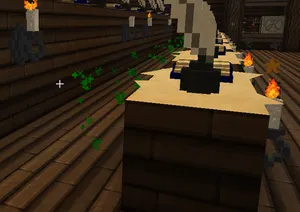
In order to claim a seat, you need to walk into a classroom region while its in Seating Status and right click one of the flashing green locations. When the particles turn orange, you have claimed a seat. You can swap seats at any time.
Multiple different parts of a seat depends on what type of classroom one is in. In most classes, the only object of the seat is the seat you sit in. In potions classrooms you also have the different parts of potion making available to you.
Once you have a seat the class will start on the hour (xx:00).
You will have to respond to prompts, whether it be a question or a quest task that asks you to do things.
A Question has to be responded to in chat by clicking on the answer. If the question rewards points then you will receive them, though some do not reward points, because they are just opinion or roleplay questions. Question exams give you two minutes to respond. If it’s not an exam, the question will be repeated every 3 minutes until you answer or until the class ends.
If a question is single answer, you must type your answer in chat. If it’s not an exam, the question will be repeated every 3 minutes until you answer or until the class ends.
For spell learning sections you will be given an incantation and movements, and asked to cast a spell. There teacher may require you to cast it more than once. Once you cast it the required number of times, the class will move on.
A spell quiz will give you an incantation and expect you to cast a spell that you may have learned previously. You are expected to know the wand movements. You will have a set amount of time to cast, and be rewarded points if it is done successfully.
In a potions class, you will need to go around to shelves (marked by particles) and find ingredients on the shelves. During an exam, clicking a wrong ingredient will lose you points. The list at the top is a list of ingredients you need to find in the inventory below. Once all potion ingredients are found, they will be available to collect in the bookshelf at your seat.
When creating a potion, it will give step-by-step instructions for how to create a potion. When one step is complete, it will move onto the next step. All potion steps need to be completed at the user’s seat, or it may not count towards the lesson.
A quest task in a lesson can be any type of task that is available in the Quests Plugin. These tasks in classrooms are usually click blocks though. The lesson will no move on until the task has completed.

Tutoring tickets are tickets that can be used to attend the subject that the ticket was created for. In order to use a tutoring ticket you must enter into an automated classroom that matches the ticket. For example, for transfiguration, you must go into the transfiguration classroom where automated lessons are taught.
Tutoring tickets can be used even if a class is ongoing. They can happen at any time. You cannot attend another class while you use a tutoring ticket.
Reset tickets will reset a student’s classes, either per subject, for the entire year, or for all the classes ever taken.
These are occasionally given to reset a student back to the start of their year if they are returning from being offline for a long time. Only available at owner discretion.
Electives are classes that are not considered required to finish the year. When running the /elective command, a student can select and deselect electives they wish to take within the parameters of what is allowed.
In year 3, 5 subjects are considered elective: Magical Creatures, Arithmancy, Divination, Amagical Studies, and Runic Studies. Year 3-5 Students need to take at least 2 electives. After Year Three, you can only take electives of classes you passed in year three.
When taking the year 5 exams, you have the ability to fail any of the twelve exams. Any that you pass are considered elective classes. You may select or deselect any electives that you passed an exam for. In year 7, you can only attend electives you passed in year 6.
In order for you to year up, you must meet all the requirements in order to pass into the next year.
In year 5, there will be up to 12 exams you can take, one per subject. Each exam needs to be passed with either an O or E to attend it in the next year. If you fail all exams for the classes you are currently attending, then you will automatically graduate from Year 5 and not be able to attend any classes for Year 6.
If you deselect all your classes in Year 6 or 7, and year up, you will automatically graduate.
The following scenarios will cause a graduation when clicking the year up sign: